What is Sales by Product Report in Shopify
The Sales report by product is a powerful tool that tracks all sales data in a store and shows it in a second regardless of the catalog volume.
The Sales by product report allows you to get answers on important questions for any store in a few seconds. Generate a report, and you will instantly know what products are bestsellers in your store and what items sell the worst.
This tool shows each product in a new row along with its sales data, so you can easily understand what is going on.
Please note that shipping fees are not included in the Sales by product report. This is due to the fact that one order may require several shipping transactions for multiple groups of products purchased in one order. Since there is no data on how the shipping fee is proportioned between these groups, the Shopify sales by product report excludes shipping fees.
What Specific Terms Sales by Product Report Uses
While viewing a Sales by product report, you may encounter some specific terms. These terms are common for this type of report regardless of the ecommerce platform, whether it be Shopify, Magento, or any other platform.
Since you can configure the report to exclude or include data columns, the presence of these terms in the report depends on the data columns you have chosen.
The common terms used are:
- Product vendor: Shows a vendor of any third-party products in your store.
- Product type: Depicts the type of sold products, for example, clothing.
- Product title: Displays the product name.
- Net quantity: The number of actually sold products, with the returned products not considered as sold.
Purpose of Sales by Product Report
Sales report by product is an integral asset for any Shopify store that allows tracking all business information generated in a store. The document shows all data in a moment, no matter what the inventory volume is.
Shopify store owners can use the Sales by product report to find solutions to significant business inquiries. Create a report, and you will quickly know what items are smash hits in your store and what things sell just awful.
The default interface of this report is rather straightforward as it shows every item in an individual row alongside its sales information so you can undoubtedly get a complete understanding of what is happening with sales.
Other Reports Used Along with Sales by Product Report
Sales statistics in a store are not limited exclusively to data on product sales. A Shopify store owner may use several other sales reports alongside the product sales report.

Often in conjunction with the product sales report, such reports as sales by product variant, by product tag, by vendor, by hour, by channel, by POS location, and a dozen of other similar reports on sales.
Why Default Shopify Analytics May Not Be Enough for You
Every second your store successfully works and makes sales, it generates a lot of data. It tracks the product pages customers have seen, the products they've bought, and other activity.
Shopify collects this data generated in your store and presents it through a built-in default analytics suite. However, this does not mean that the data will be available to you.
Since Shopify is a managed ecommerce platform, it offers its services through subscription plans. Depending on the subscription plan, a store owner can get access to a specific list of reports provided by Shopify's default analytics. The higher the plan, the more reports Shopify provides.
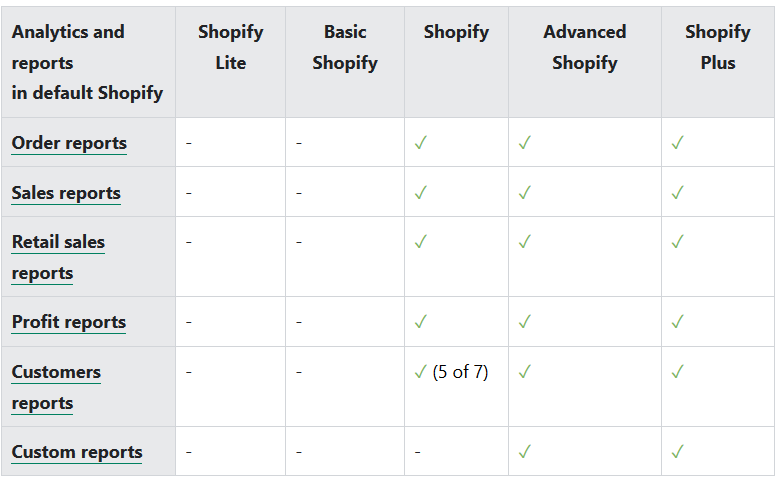
Stores on Shopify Lite and Basic Shopify plans do not have access to the sales reports in default Shopify's analytics suite.
Users of those plans can opt into a third-party analytics suite, Advanced Reports by Mipler. Get the tools to easily build, share, and export reports.
Building Sales by Product Report with Advanced Reports App
First Launch of Advanced Reports App
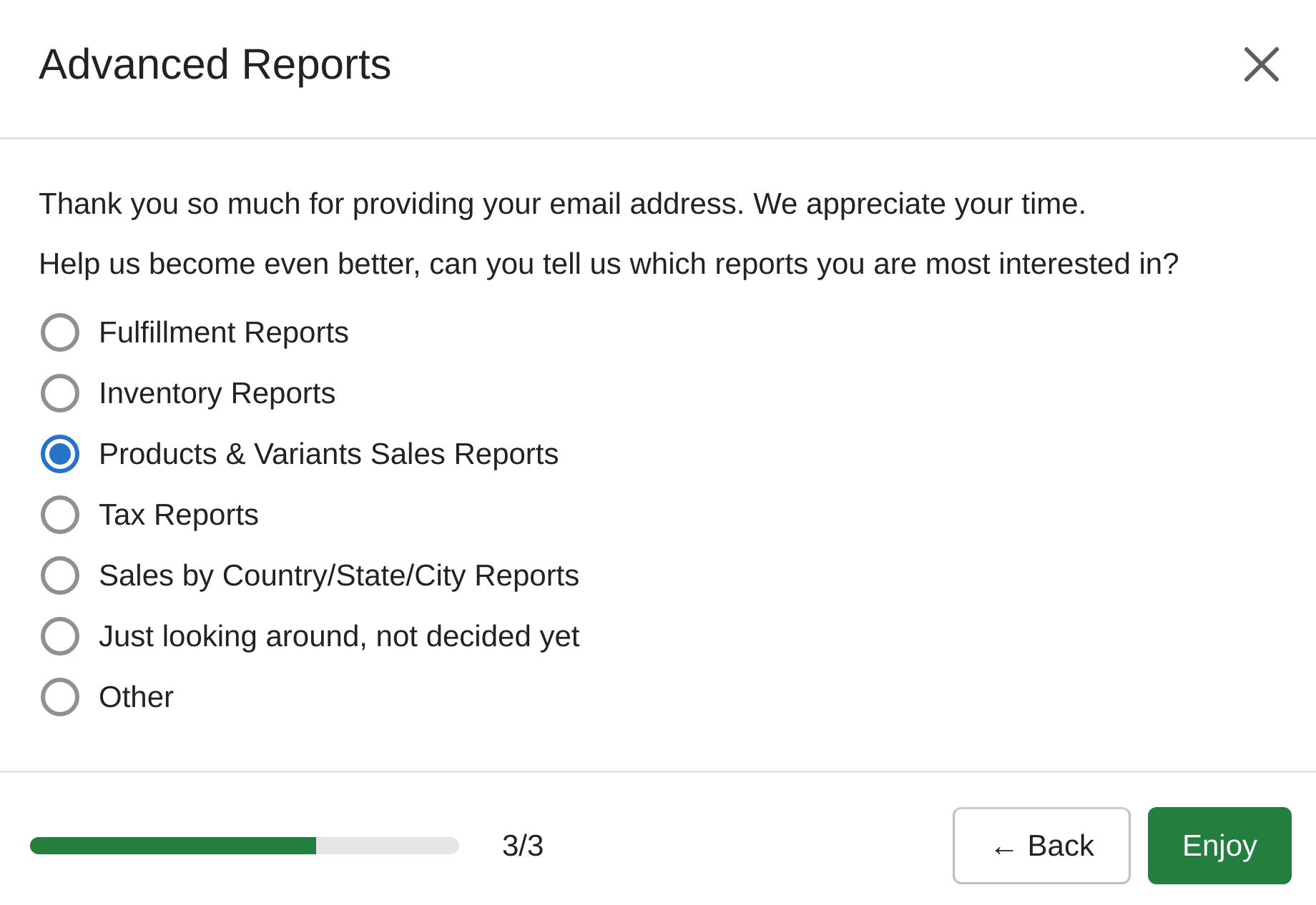
When launching the Advanced Reports app for the first time in your store, you will be greeted with a request to provide some additional information for its developers to enhance the app in the future.

This step will not take a long time, and you need to provide answers only to two questions. These questions are: contact email and the major planned usage of the app.
Default Columns in Sales by Product Report
The default configuration of the Sales by product report in the Advanced Reports app includes eight columns: product name, number of orders, total quantity of orders, total quantity of refunded items, total amount of refunded items, ordered items total net amount, total discount allocation, ordered items total price.
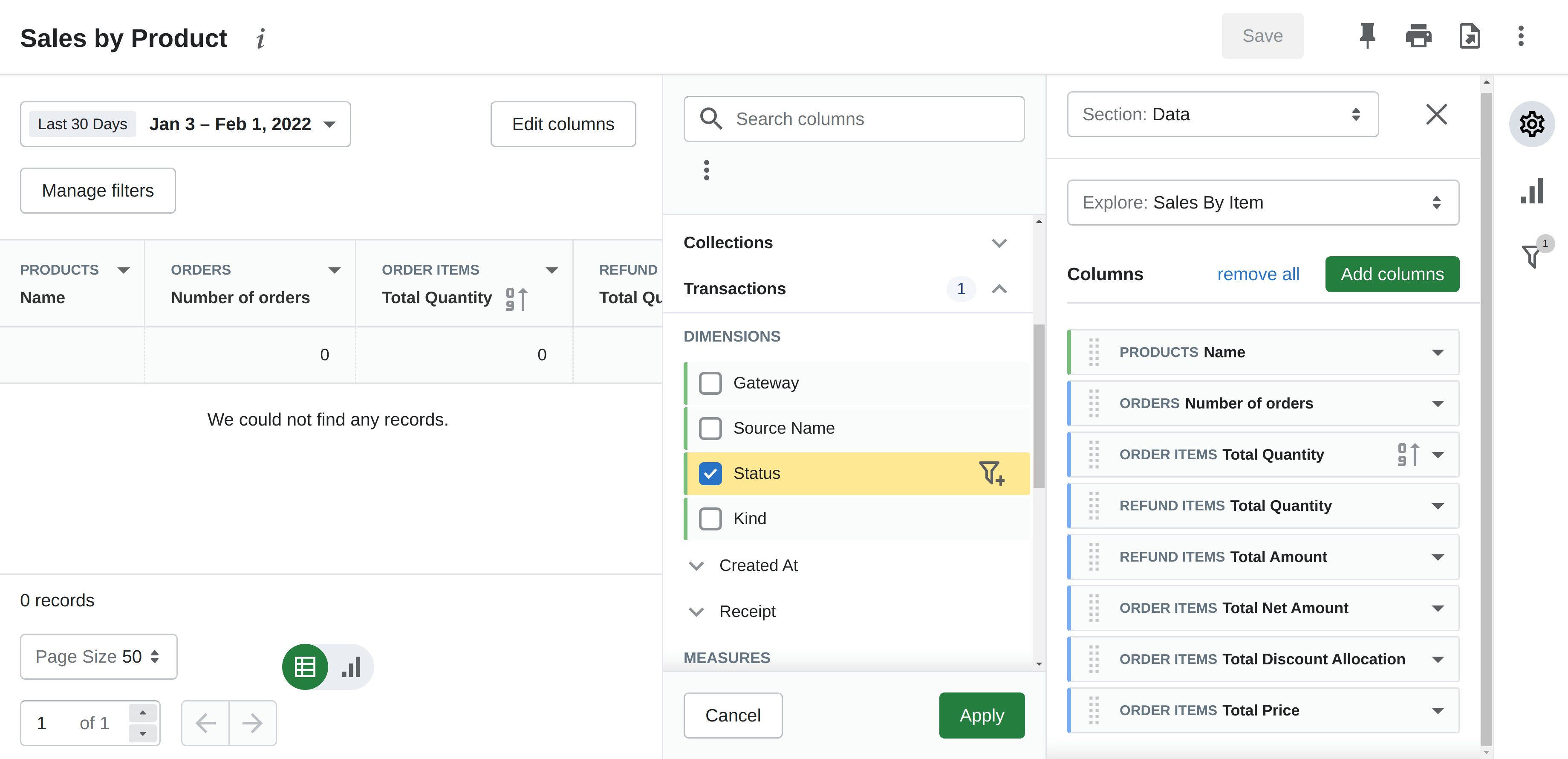
You are totally free to exclude any of the existing columns from the report or add several additional ones. Simply choose available columns from the list. Enable advanced mode to get more options for adding columns.
How to Filter Data in Sales by Product Report
The Sales by product report in the Advanced Reports app can display exactly the data you need by filtering out the irrelevant information.
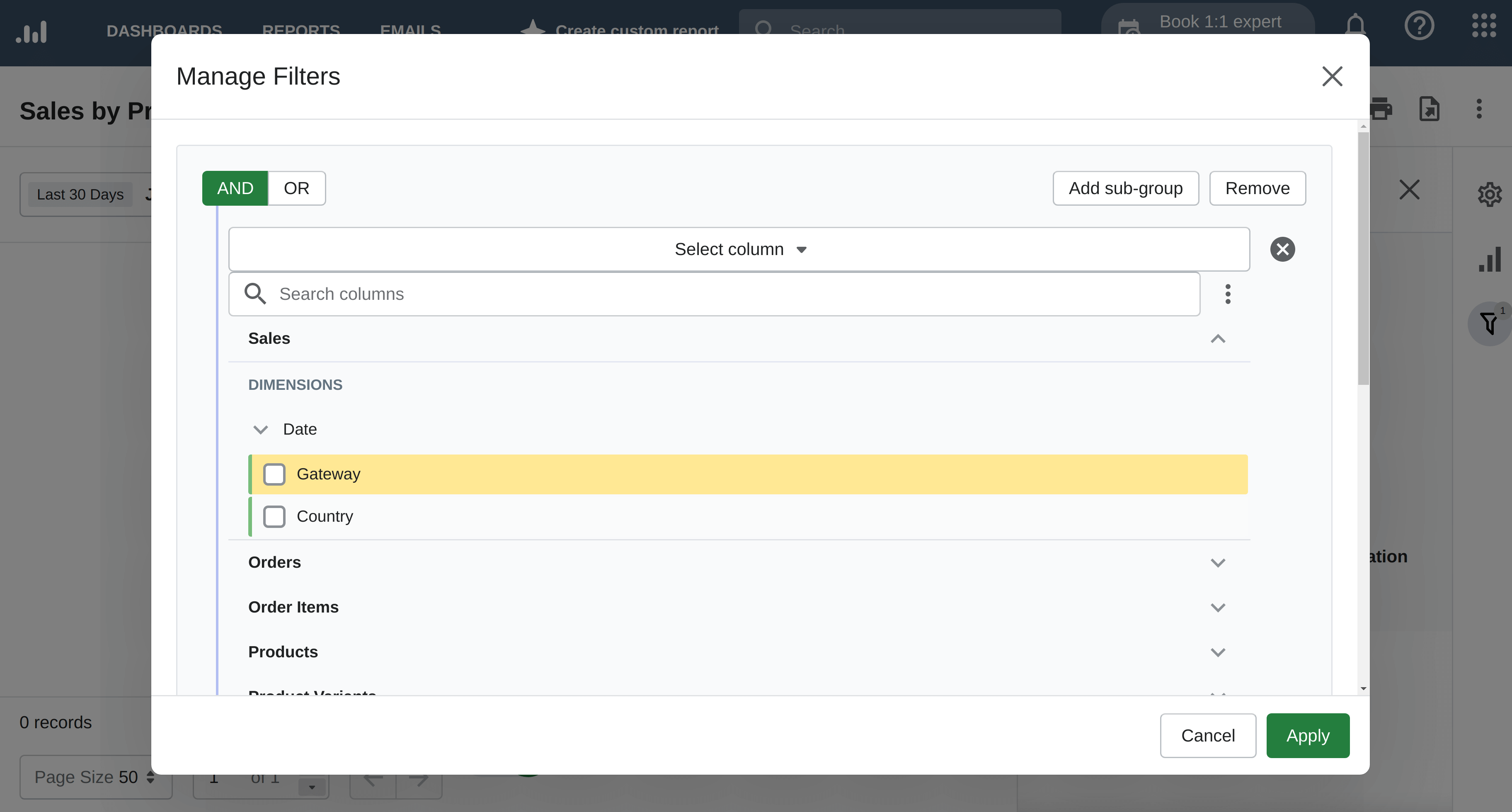
Use filters to display the data based on conditions. For example, you may filter out from the report all products that do not belong to a specific product type. Another example is filtering out by price.
How to Display Sales by Product Report as a Chart
By default, the Sales by product report is displayed as a table filled with numbers. This may be convenient to see the raw data on exact products. However, to spot any possible sales trends, it may be better to change the visualization format from table to chart.
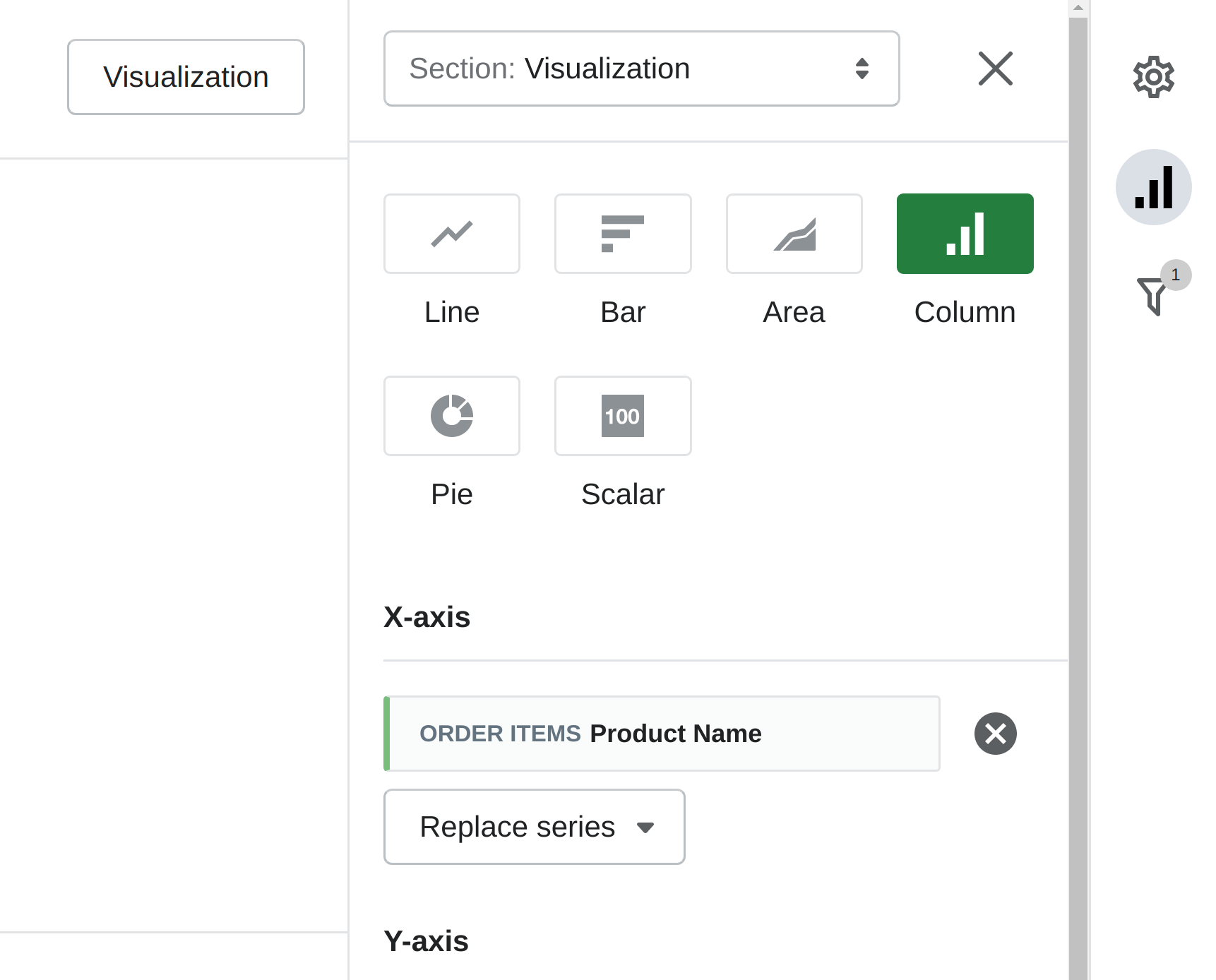
With the Advanced Reports app, you can display your sales data in several graphic types: line, bar, column, area, pie, scalar. You can modify the X and Y axes, replacing the existing one with another or adding some data column for visualization.
How to Export Sales by Product Report
With the Advanced Reports app, you are free to view the report in any other apps in addition to the admin panel of your store.
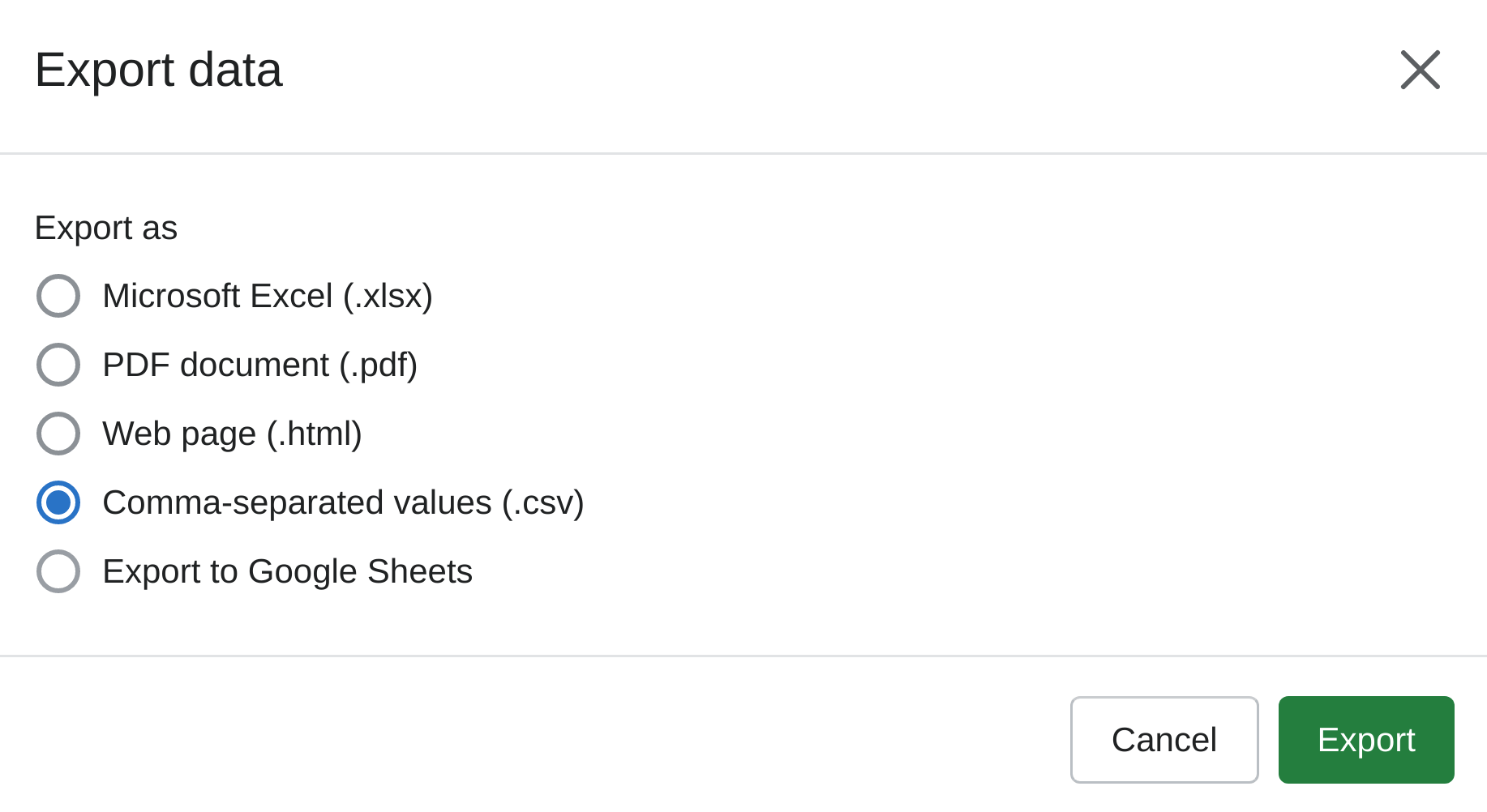
You have several options for exporting the report data with a button click. All you have to do is to select the data exporting format from the list of available options: Microsoft Excel, PDF, web page HTML, CSV, Google Sheets.
Additionally, you can print the report on paper directly from the Advanced Reports app.