Metafield Columns
Shopify metafields let you store custom data on products, variants, orders, customers, and product categories. Mipler can turn any of these metafields into a report column, without asking Support to add it for you.
How it works
Before a metafield can become a column, Mipler has to know it exists. A background scan reads the list of metafields your store defines - only their namespace and key, not their values.
This scan runs once per store. It is not repeated automatically, so if you add or rename metafields in Shopify later, run it yourself from Settings → Store data → Metafields synchronization:
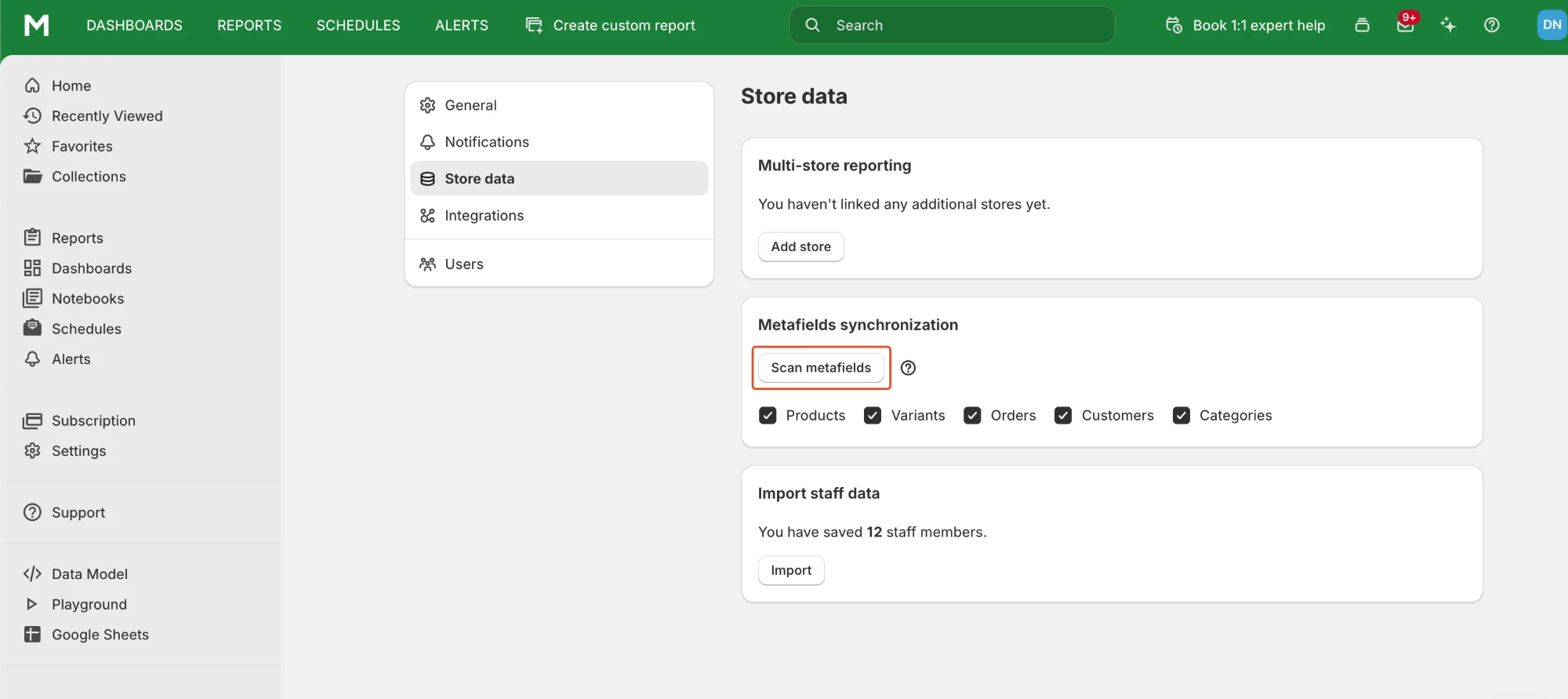
✅ Scan metafields: Re-reads the list of metafields from your store. The scan always covers every entity type, no matter which checkboxes are ticked. To use a metafield afterwards, open a report, search its name under Manage Columns, and click Add as column.
✅ Products / Variants / Orders / Customers / Categories: Which entities Mipler synchronizes metafield values for. These checkboxes do not affect the scan.
Adding a metafield as a column
- Open any report and click Manage Columns.
- Type the metafield's name in the search bar.
- If your search matches one metafield's full name exactly, a card appears:
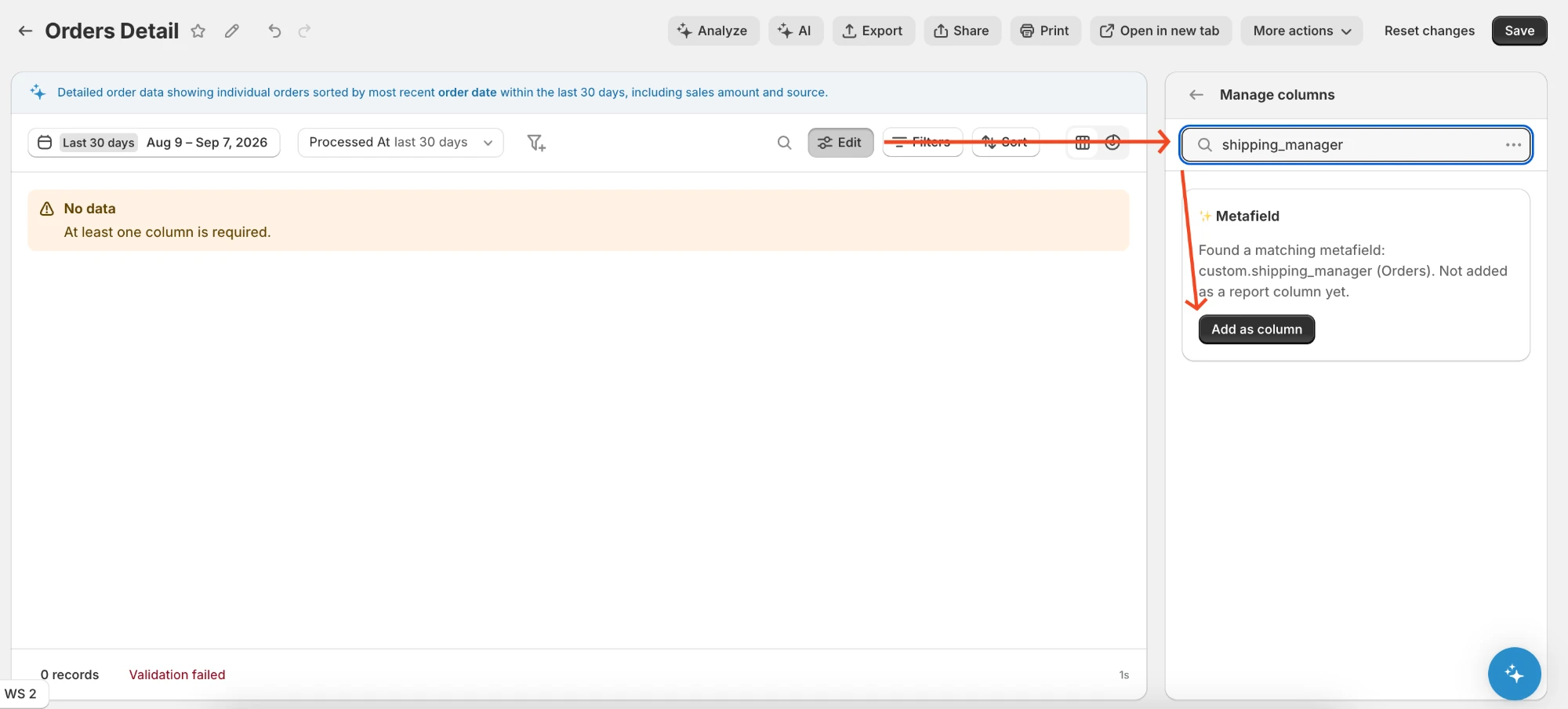
If your search only partially matches, the matching metafields appear as rows in a Metafields group instead. Click a row to open the same offer in a popover. This is the usual case when you remember only part of the name.
- Click Add as column. The column is created immediately and appears in the column list like any other column.
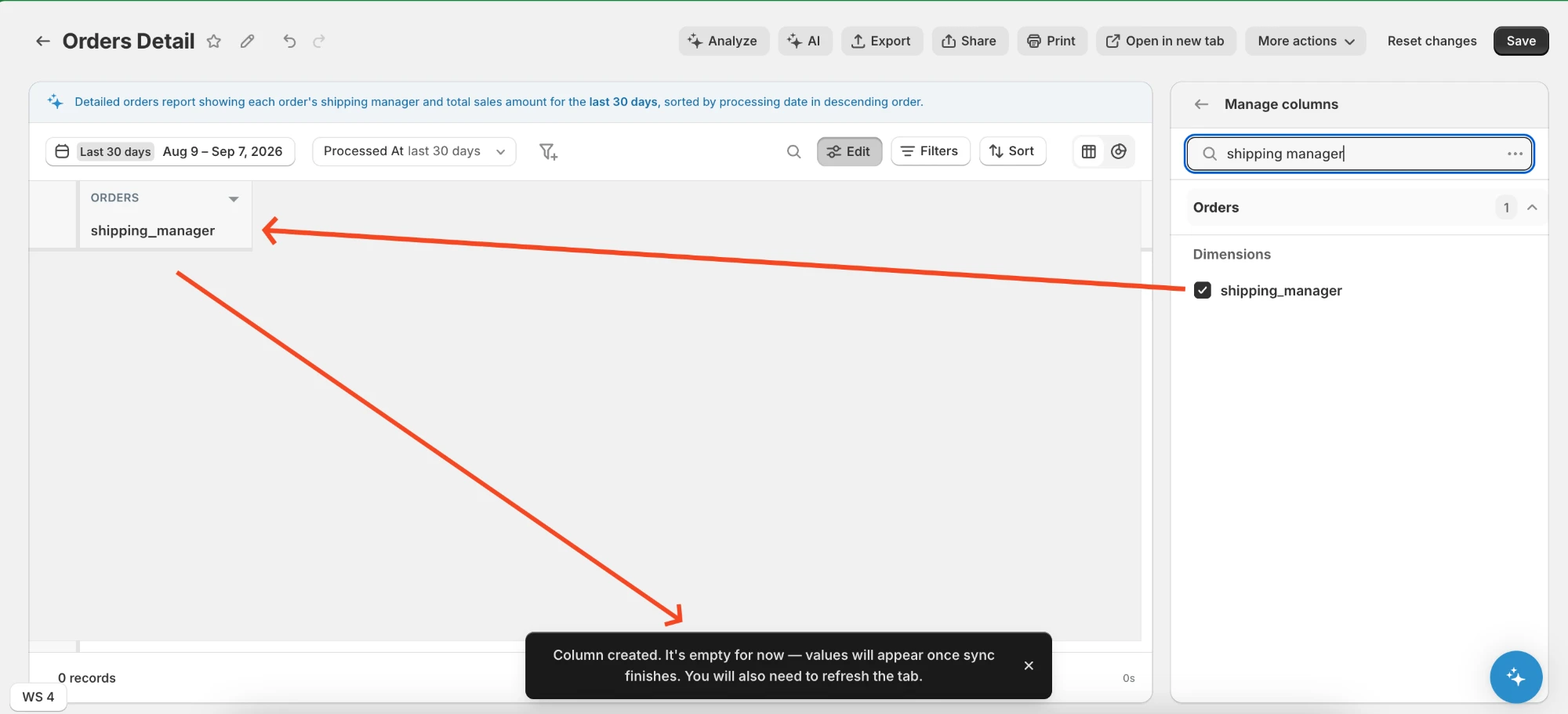
A toast confirms the column was created and reminds you to refresh the report tab to see the values in it:
Column created. It's empty for now - values will appear once sync finishes. You will also need to refresh the tab.
If nothing is found
If your search does not match any known metafield, you will see a generic message with a Contact support button instead:
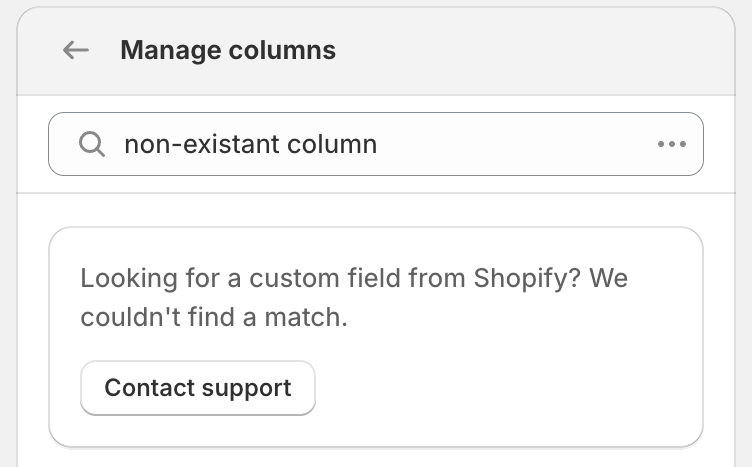
This can mean the metafield genuinely does not exist, or that your store has not been scanned since you created it. Run Scan metafields in Settings and search again, or reach out to Support.
Important Notes
- Refresh the tab after adding a column. The report tab needs a refresh before the new column shows up in the column picker.
- Values may take time to appear. Adding a metafield column automatically turns on synchronization for that entity if it was off. The column stays empty until that sync finishes - this can take a few minutes, longer for larger stores. If it stays empty after that, see Metafields Are Empty.
- Scanning and syncing are different steps. Scanning only detects which metafields exist. Synchronization is what pulls their actual values into your reports.
- Supported entities. Products, variants, orders, customers and categories (Shopify collections) are covered end to end. Metafields on other Shopify resources, such as companies, draft orders or locations, can turn up in search but their values are not synchronized - contact Support if you need one of them.
If you have further questions or experience issues, contact Support through your Mipler account.