Troubleshooting Google Sheets Integration Issues
If you're experiencing issues with integrating Mipler reports into Google Sheets, such as data not appearing, it might be due to limitations in Google Sheets' response time. Below are step-by-step solutions to resolve these issues.
Solution 1: Manual Updates Using a Checkbox
You can set up a manual refresh mechanism using a checkbox in Google Sheets.
-
Copy the Integration Link
Copy the link from the=IMPORTDATA()formula provided in the Google Sheets Integration.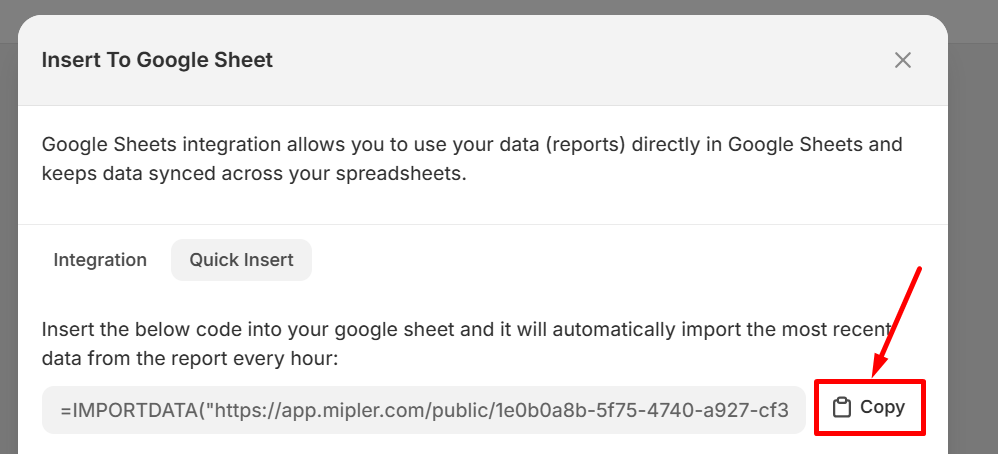
-
Modify the Link
Paste the link into your Google Sheets file. Add?nocache=after the URL's last slash and append&followed by the cell reference of a checkbox.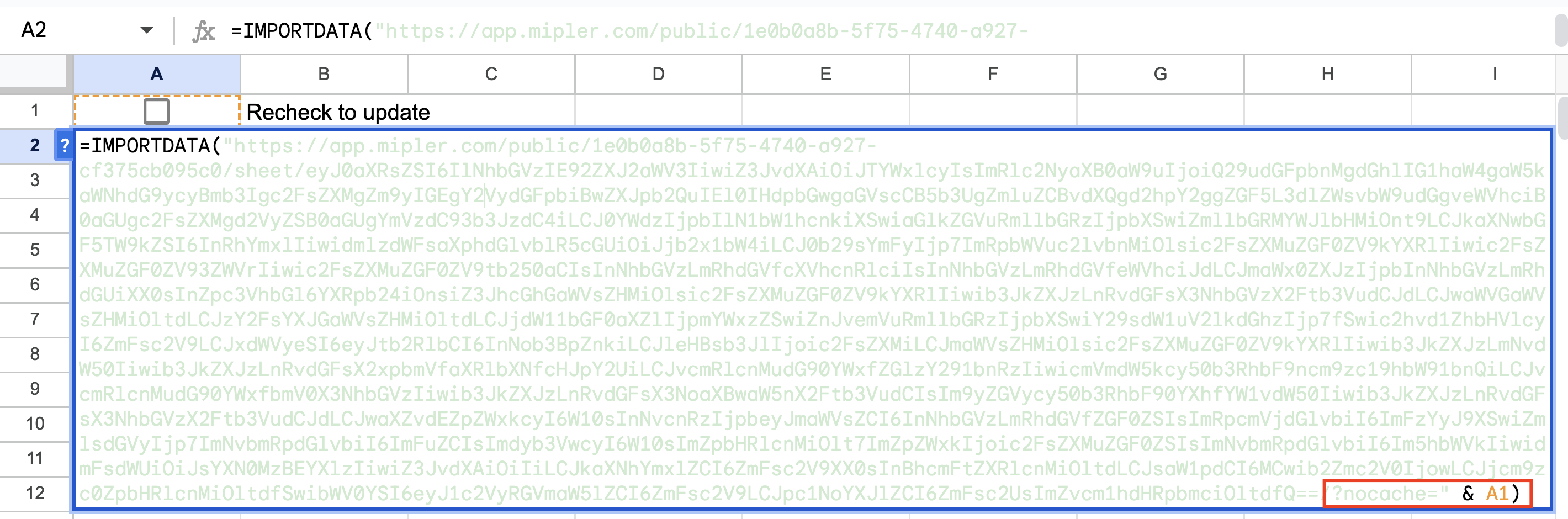
-
Add a Checkbox
Insert a checkbox in the referenced cell and format the sheet as required.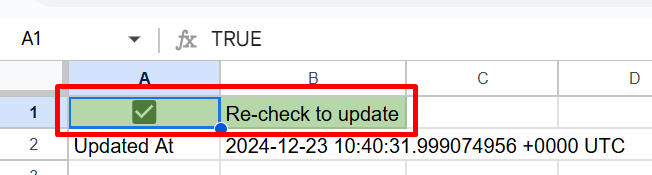
By toggling the checkbox, the formula will refresh, updating the data in your sheet.
Solution 2: Automate Updates with Apps Script
Automating the integration with Apps Script allows for seamless and regular updates.
-
Access Apps Script
Open a new Google Sheets file, then go to Extensions → Apps Script.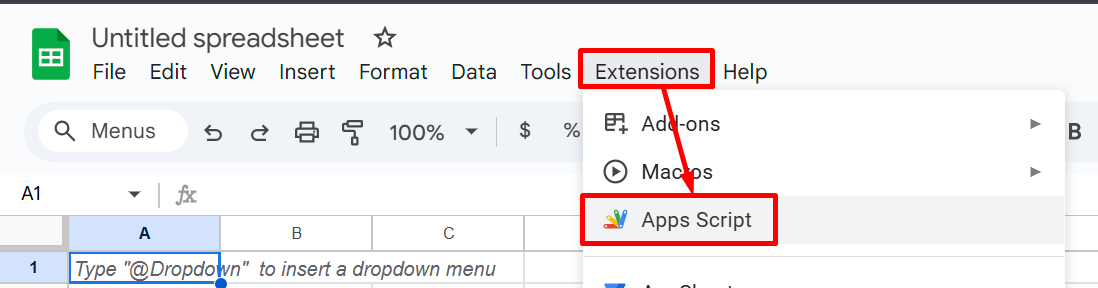
-
Add the Script
Paste the following script into the Apps Script editor:function importCsvData() {
var sheet = SpreadsheetApp.getActiveSpreadsheet().getSheetByName('Sheet1');
var url = ''; // Replace with the Mipler CSV download link
var response = UrlFetchApp.fetch(url);
var csvData = Utilities.parseCsv(response.getContentText());
sheet.clear();
var currentTime = new Date();
sheet.getRange(1, 1).setValue("Last updated at: " + currentTime.toLocaleString());
sheet.getRange(4, 1, csvData.length, csvData[0].length).setValues(csvData);
} -
Navigate to Your Desired Report
Navigate to your desired Mipler report, enable Quick Access & Sharing, and copy the Download Link in.csvformat.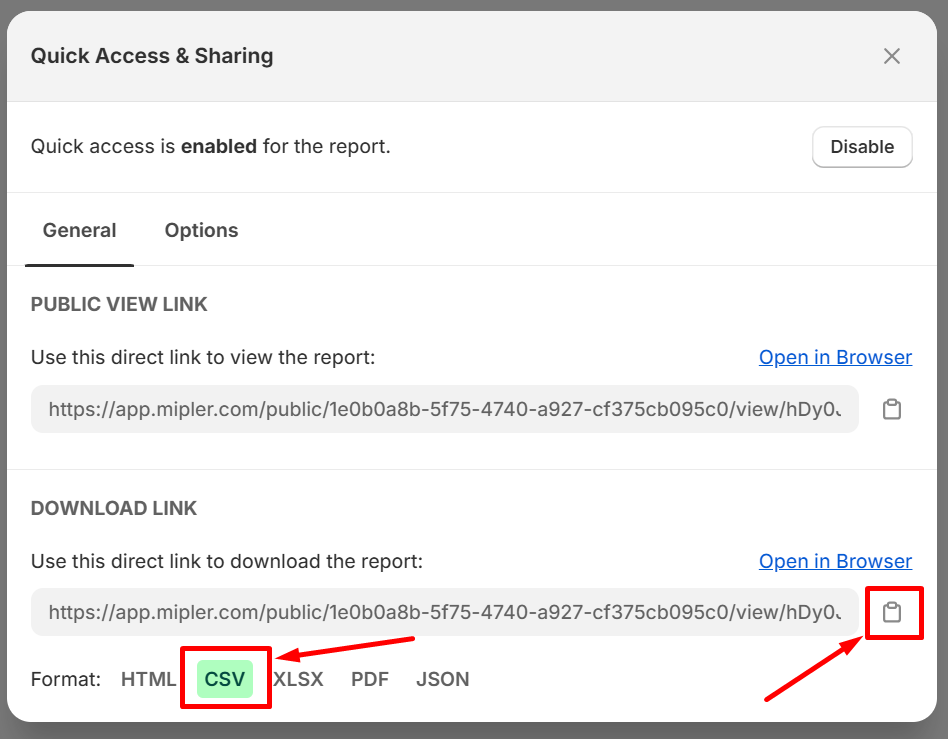
-
Set the URL in the Code
In the code, set theurlvariable to the copied Download Link from Mipler and save the project.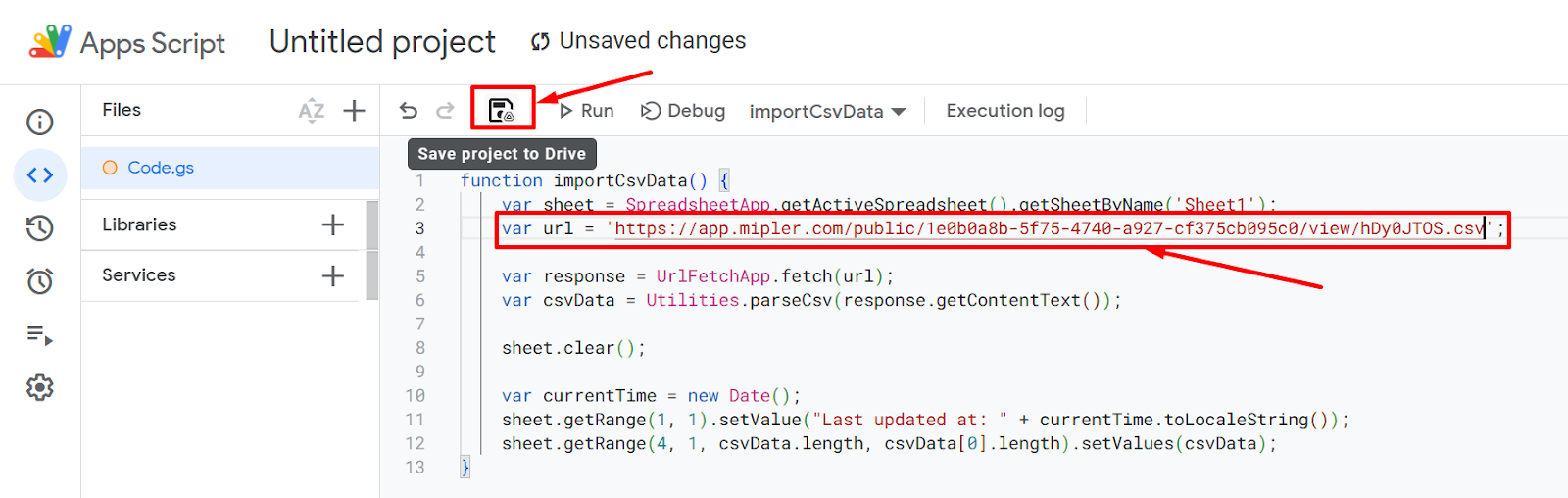
-
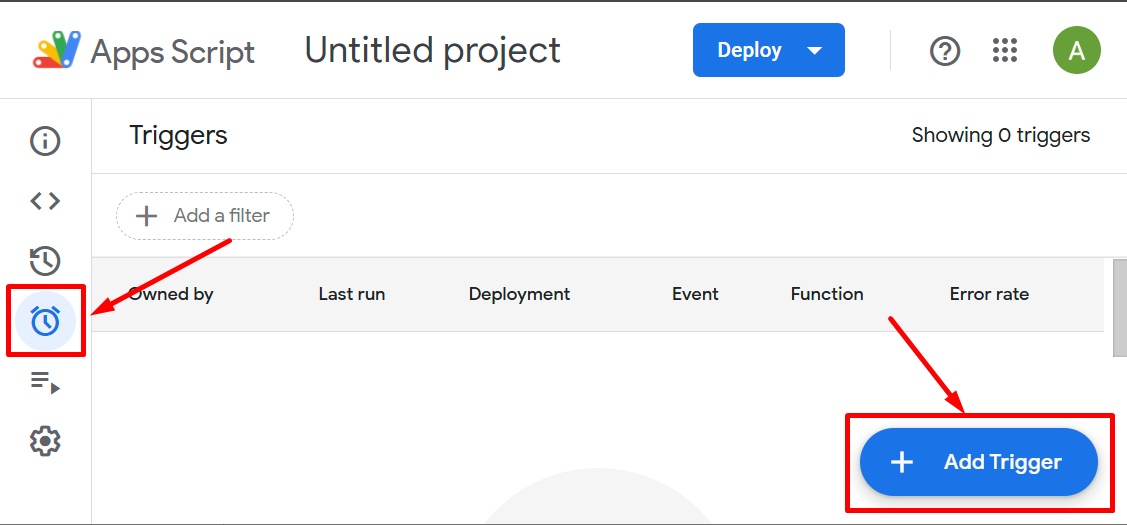
Add a Trigger for Automatic Refresh
Go to the Triggers section in Apps Script and add a new trigger. Keep the default settings to refresh the report whenever the sheet is reloaded.